 MessageDot
Setup guide for MessageDot
MessageDot is a Chrome extension that adds a side panel to WhatsApp Web. The panel is connected to your HubSpot account, so you can find or create contacts, manage deals, and log notes, tasks, calls and meetings while you chat.
On this page
Before you start
- A HubSpot account. You need permission to install apps (a Super Admin, or a user with the App Marketplace Access permission).
- Google Chrome (or another Chromium-based browser) on a computer.
- A WhatsApp account that you can open in WhatsApp Web (web.whatsapp.com).
Install the app
- Log in to HubSpot and open the Marketplace: click the Marketplace icon in the top navigation bar, then App Marketplace.
- Find the MessageDot app card. Search for "MessageDot" and select the app.
- Click Install app.
- Select the HubSpot account you want to connect, if you have access to more than one.
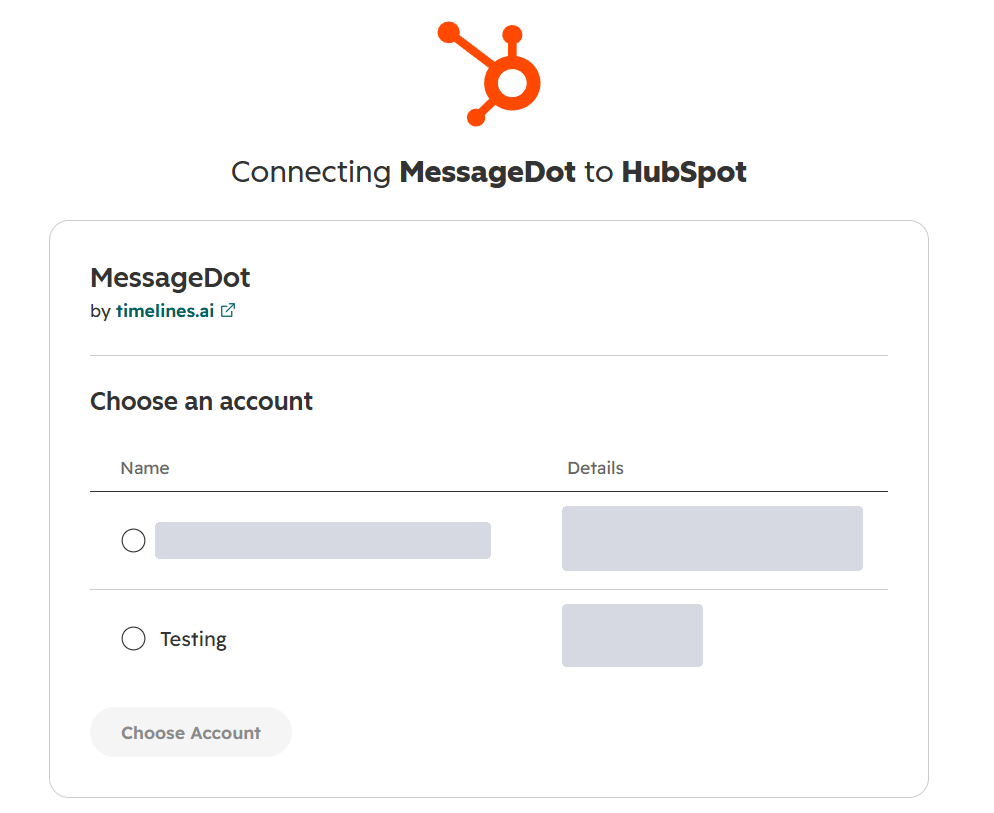
Choose the account to connect. - Review the permissions (scopes) MessageDot asks for and click Connect app.
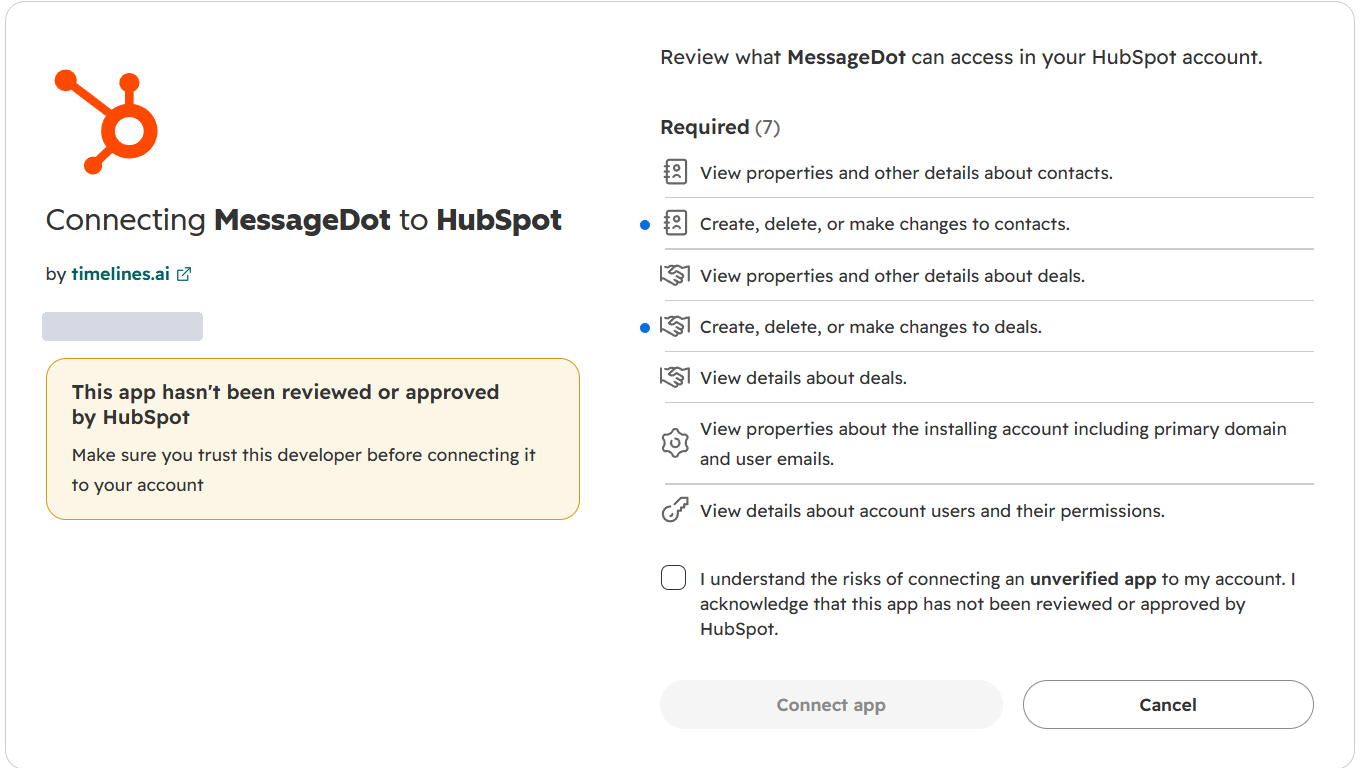
The scope approval screen. - Finish. HubSpot returns you to MessageDot's settings page, which shows "Your MessageDot integration is active and ready to use."
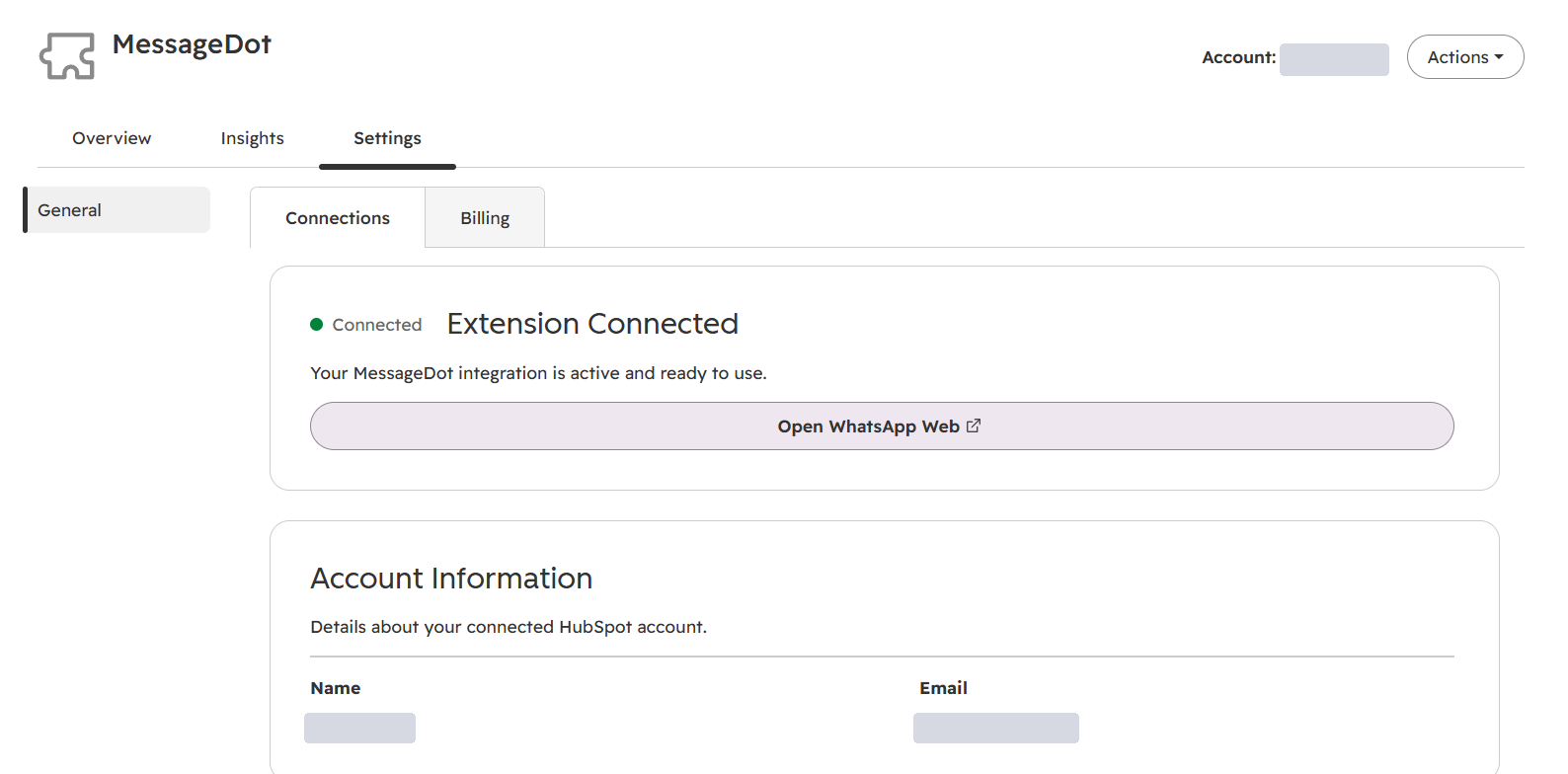
MessageDot settings page after connecting.
Add the Chrome extension
- Open the extension page on the Chrome Web Store: MessageDot Chrome extension.
- Click Add to Chrome, then confirm. Pin the extension from the puzzle-piece menu if you want it always visible.
- Open WhatsApp Web and sign in with your phone as usual. The MessageDot panel appears beside your chats and asks you to sign in with the HubSpot account you connected.
Configure the app
Open MessageDot in HubSpot under Settings → Integrations → Connected apps → MessageDot.
- Connections: shows the extension status and the connected HubSpot account.
- Billing: choose the number of seats and monthly or yearly billing, then use Invite New Members to add HubSpot users. Each person then installs the Chrome extension.
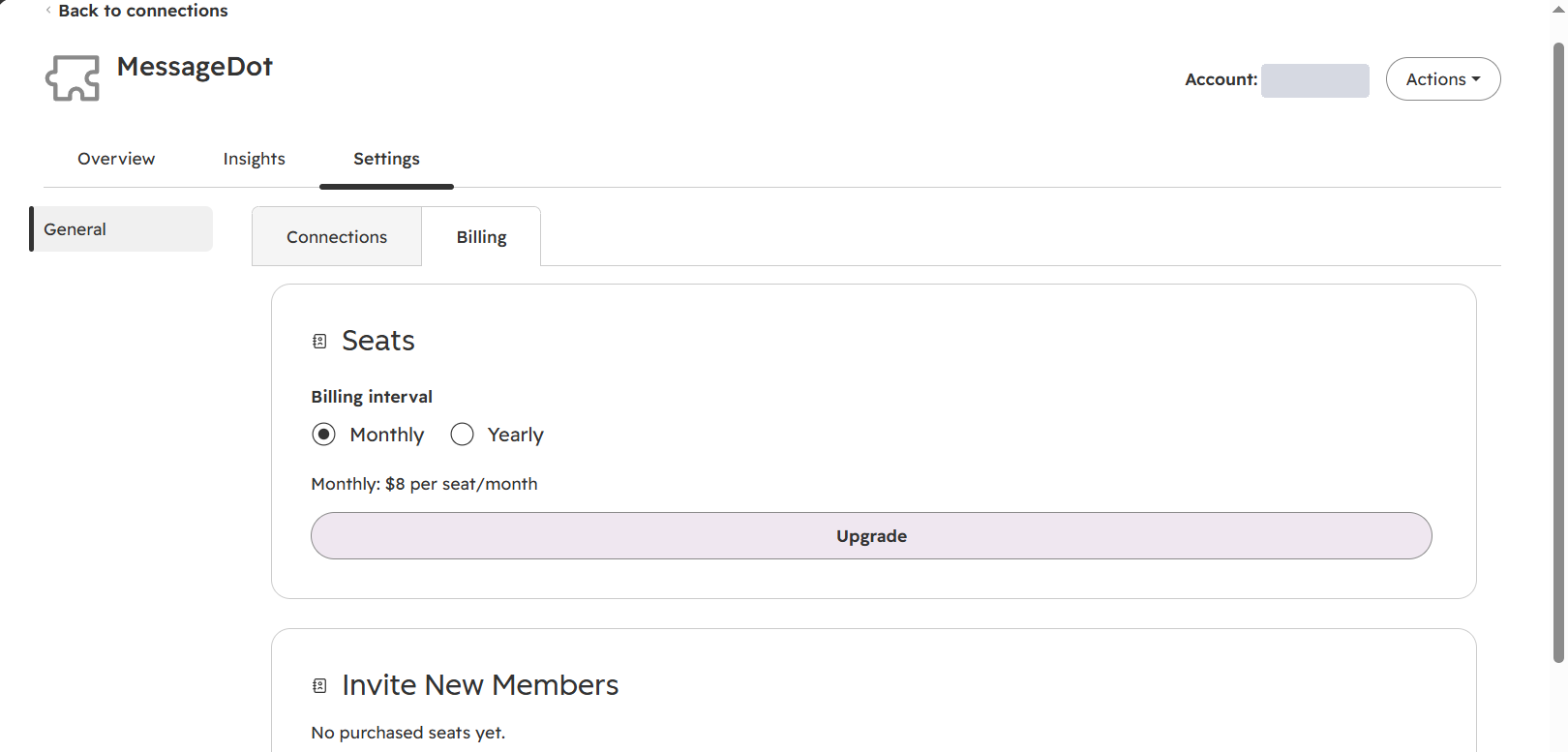
Use the app
Open a chat in WhatsApp Web. The MessageDot panel shows the matching HubSpot contact, or lets you create one. From the panel you can:
- create and update deals in any pipeline;
- add notes and tasks to the contact;
- log calls and schedule meetings.
Get help
Email support@messagedot.com or see the Support page.